RIVALS Scripts: What You Can Do in the Game
RIVALS is the Roblox FPS experience by Nosniy Games, built around duels from 1v1 to 5v5. Players look for a clean view of the arena, readable information and controls they can understand during a match. This catalog focuses on the scripts associated with that Roblox game. Marvel Rivals is a different title; code made for it does not belong here.
RIVALS Script Menus and Game Features
Start with the script catalog and the feature list on the entry that interests you. A menu name alone tells you little about its controls. One entry may describe an aim option, another an information overlay, and another several separate settings. Read those descriptions before choosing a script simply because its title sounds familiar.
The keys and contracts described on the official RIVALS page concern the game itself. A script key is a separate access step. Neither a menu illustration nor a feature discussed in this guide means every catalog entry provides it. The cards are where you compare the options actually listed.
Searches for RIVALS scripts often mention pastebin and github: it hosts code text, while the latter provides project files and revision history. Compare the author and feature description to identify the menu version you need.
RIVALS AIM Scripts and Aimbot Features
AIM is a broad label. Aimbot usually describes a menu's stated assistance with selecting or aiming at a game target, while Aimlock may describe a more persistent target selection. The exact behavior depends on that implementation. Treat the names as a starting point for reading the controls, rather than a promise that two menus will behave alike.
RIVALS Aimbot Menus and Target Settings
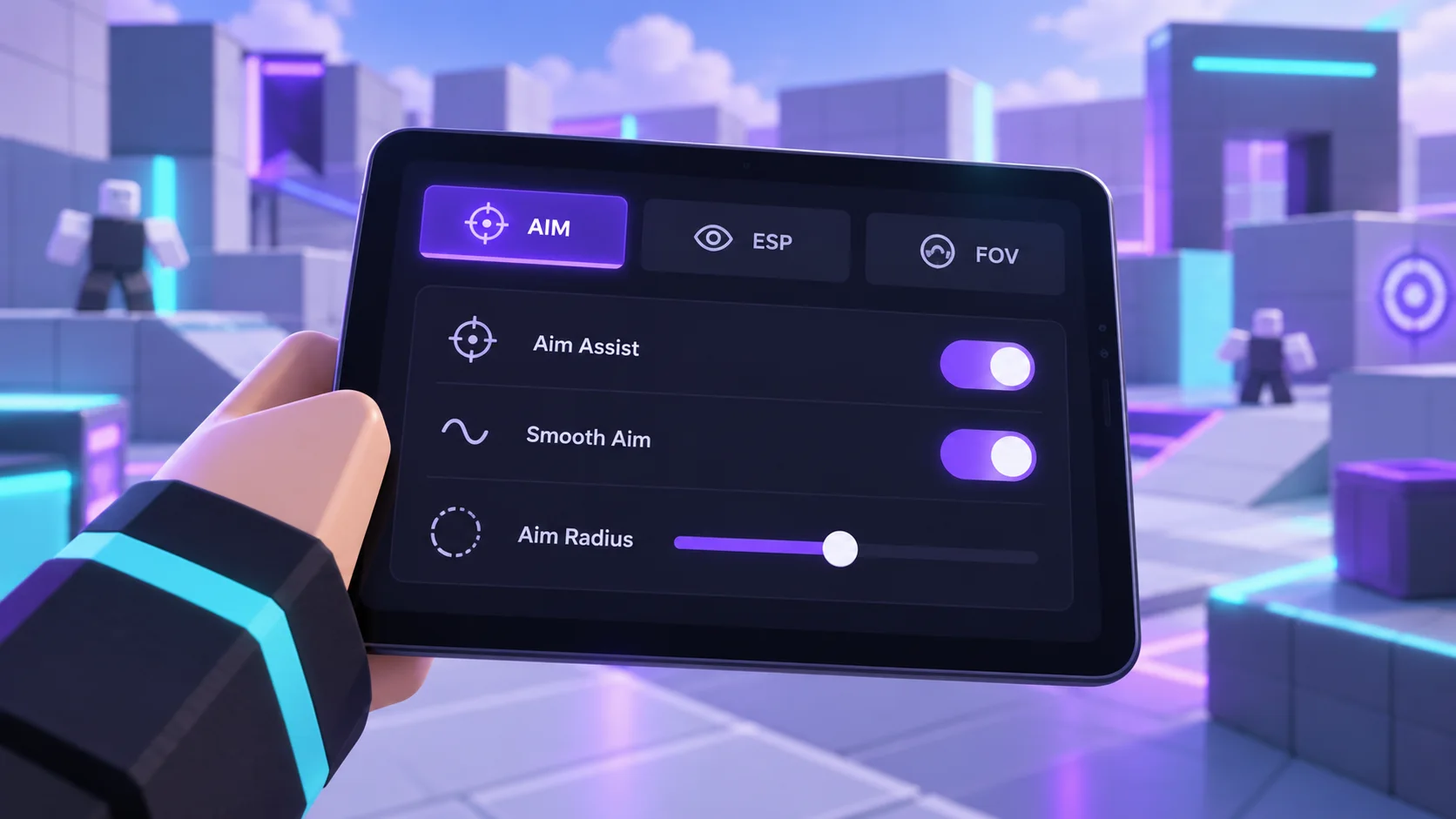
When a card lists aim settings, look for what each setting changes. A target selector, an activation control and a smoothing option answer different questions: which target is selected, when the feature is active and how the movement is presented. Do not assume smoothing or team check exists merely because another script includes it. The selected entry needs to name those options itself.
A menu can also use the word “lock” for a button or a temporary selection. That does not establish how long a target remains selected, whether the camera moves or how another feature interacts with it. If the description leaves these points open, compare another entry with a clearer feature list instead of guessing from a screenshot.
Use the catalog search for the feature you actually want to read about, then compare the matching cards. There is no reason to copy several unrelated menus at once. A feature label does not guarantee hits, wins or continued operation after an update. The AIM and ESP guide explains the distinctions in more detail.
When comparing AIM menus for RIVALS, the open Aimbot-V3 source by Exunys provides a concrete example of FOV radius, team checking and aim smoothness settings. It is a universal Roblox module; compatibility with the current version of RIVALS has not been tested here.
ESP, Silent Aim and FOV Settings
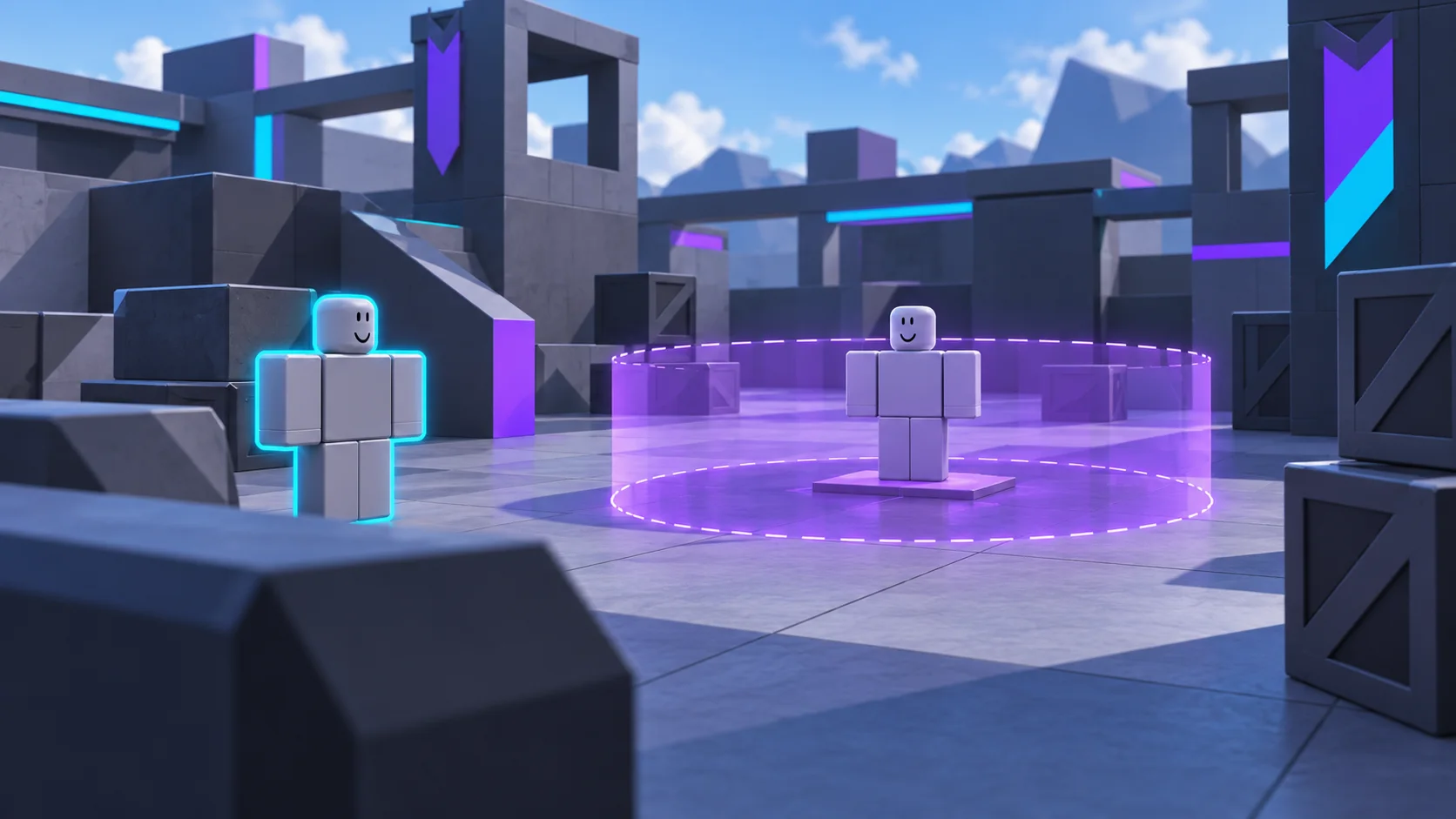
ESP, Silent Aim and FOV often appear together in searches, but they describe different things. ESP adds the information implemented by a menu's author. A box around an object, a name label and a health display are separate options; the presence of one does not establish the other two.
Choosing Features in a RIVALS Script
Silent Aim is a separately described aim mode, not a second name for every camera control. An FOV circle commonly represents the area used by a script menu to select a target. Camera FOV changes the view of the scene. Before comparing values, identify which meaning the menu uses.
| Feature | What to look for | What varies by version |
|---|---|---|
| AIM / Aimbot | Targeting and activation controls | Available modes and settings |
| ESP | Boxes, names or health, when listed | The specific information displayed |
| Silent Aim | A distinct mode in the feature description | Its stated behavior and requirements |
| FOV | Target selection area or camera view | Meaning, range and visual controls |
Choose by the task described, not by the longest list of abbreviations. A readable menu with a clearly stated feature is easier to evaluate than a title promising everything. The illustrations explain these ideas and do not document a tested script interface.
For a concrete example of separate visual features, see the Exunys-ESP source. It implements boxes, player labels and health bars with separate settings. This helps identify which ESP elements to look for in a RIVALS menu description. The module is universal, has external dependencies and has not been tested by us in this game.
RIVALS Scripts Without a Key
The No Key label refers to a script's own key step. When that label appears on a catalog entry, it describes that entry; it does not mean the entire catalog is keyless. Check the selected card, including any access notes, before copying its code.
A keyless script and a keyless executor are different things. The executor may have its own access requirements even if the script does not. Likewise, the keys earned inside RIVALS are game rewards, not passwords for a third party menu. Mixing these meanings is a common reason a player expects the wrong download or access screen.
Use the catalog to find entries with the appropriate label. If a required key step appears where the card suggests otherwise, stop and compare the exact entry and version. Do not enter Roblox credentials into a page that claims to unlock a script. No Key is an access description, not a guarantee about account safety.
RIVALS Cheats and Hacks: Features and Limits
“RIVALS cheats” and “RIVALS hacks” are common ways players search for aim menus and overlays. These phrases do not add capabilities to a script. A listing must still describe its actual functions, and a broad title should not be read as a promise of every feature covered in this guide.
The game's published rules warn about sanctions for cheats and exploits. No menu can be described here as ban-proof, undetected or guaranteed to win. A private server does not automatically change the game's rules. Account access and reward claims also deserve separate scrutiny: a menu title is no evidence of free skins, infinite keys, unlocked weapons or Robux.
Focus on the specific control you are comparing and its stated limitation. A screenshot of a button does not prove that it changes an in-game reward. For the differences between feature names, return to ESP, Silent Aim and FOV; for a failing menu, use the checks below.
Delta, Xeno and Solara: Choosing an Executor
An executor is the separate environment used to handle a script. It is not part of the Lua file downloaded from this site. Delta, Xeno and Solara are names that may appear in searches or entry requirements; naming them together does not establish that all three support the same operating systems or the same script.
Executor Requirements for RIVALS Scripts
Read an entry's executor requirements alongside its platform information. Compatibility is a combination of the chosen script, the Roblox game, the executor and the operating system. A statement about one component cannot fill in the missing information about another. In particular, a desktop executor should not be treated as an Android or iOS application because someone used its name in a mobile search.
Version details matter when a menu depends on behavior that has changed. If the card identifies a requirement, compare that exact requirement rather than relying on an old video with a similar title. This catalog does not turn a mention of an executor into a tested recommendation.
The executor requirements guide helps you separate platform support from interface controls. Start there if you are choosing a device; start with troubleshooting if a previously available menu no longer opens.
RIVALS Scripts on Android, iOS and PC
Being able to play Roblox on a device does not establish that a third party script environment is available there. Device support has several parts: the game, the executor, the script and the way the menu is controlled.
RIVALS Scripts on Android
On Android, look for an explicit Android requirement for the executor and a suitable interface for the selected script. Touch controls need a visible way to open and close the menu. A keyboard shortcut alone is not enough on a phone. Small switches, sliders and panels can also cover game controls, so a Mobile GUI label should lead to useful information about the interface.
RIVALS Scripts on iPhone and iPad
On iPhone and iPad, do not carry over an Android claim. iOS is a separate platform with separate software requirements. A touchscreen screenshot does not confirm an iOS version. If an entry does not establish support for your environment, downloading a Lua file will not supply the missing executor or make an Android application usable on an iPhone.
Windows PC and Desktop Controls
On Windows, distinguish the game's keyboard and mouse controls from the script menu's activation controls. A menu may describe a keybind, a clickable panel or both. Read any listed executor and version requirements; a mobile badge provides no answer about the desktop environment.
| OS | Requirement to establish | Interface to check |
|---|---|---|
| Android | Android executor and script support | Touch opening, closing and controls |
| iOS / iPadOS | Explicit support for this platform | Usable touch interface |
| Windows | Desktop executor and stated version | Mouse controls and keybinds |
How to Copy a Script or Download a Lua File
All catalog entries stay on the main page. You do not need an individual script page to read the code. Find the card you want: its full code and Copy action are already visible directly below DOWNLOAD. Use Copy to take the code immediately.
Copy Script or Download .lua
Copy places that selected code on the clipboard. If the browser denies clipboard access, select the visible code and copy it manually. Keep the full text, including the beginning and end; copying only the visible part of a long line can leave you with an incomplete script.
For a file, continue from the card to the download page. The page keeps the selected script and shows a 15-second countdown before the .lua download becomes available. The file contains the same code revision selected for that download. It is a text script, not an installer or an executor.
Check the selected name before saving, especially when you have several tabs open. You never need to disable operating system protection to use this site's copy and file actions. See the copy and download guide for the complete site workflow.
When taking code from pastebin or github, copy the complete file and compare it with the selected script description. The platform name alone does not explain which features the menu includes.
RIVALS Script Not Working? What to Check
First identify what failed. A download that did not start, an incomplete copy, a menu that never appears and a single missing option are different problems. Return to the original card so you can compare the same script instead of changing several things at once.
The Menu Does Not Open or a Feature Stops
Check that the entry is for Roblox RIVALS and that you copied the entire code. Then compare the stated executor and platform requirements. A missing key step can prevent access to a menu; an unavailable keyboard shortcut can make an existing menu look absent on a touchscreen.
If the menu opens but one feature stops, look for changed settings and the entry's revision information. A game or executor update can change behavior without breaking every part of a script. An updated page date alone does not prove an in-game test happened.
Do not treat every error as a request to bypass protection. Record the visible error, the script name and your platform, without sharing credentials. The troubleshooting guide provides a more detailed sequence for separating code, access and interface problems.
Frequently Asked Questions
No Key Scripts and Executor Keys
These answers cover the choices players most often need before using the catalog. A card's current details still matter when choosing a particular entry.
Where can I get RIVALS script code?
Find a card in the main catalog. Its code and Copy action are already visible below DOWNLOAD. Copy takes the code immediately; DOWNLOAD opens the selected entry's download page, where you can save the Lua file after the countdown.
Are there RIVALS scripts without a key?
Look for the No Key label on the specific entry. It concerns the script's own access step. It does not remove an executor's requirements, describe every script, or refer to the keys earned through gameplay.
What features does each script include?
Read its feature list. AIM, ESP, Silent Aim and FOV are useful comparison terms, but their presence in this article is not a promise that every menu includes them. Settings can also differ between versions.
Do these scripts work on Android or iPhone?
Check each platform separately. An Android statement is not an iPhone statement, and Mobile GUI describes controls. The script and executor must both have relevant requirements for the device you intend to use.
Can I use Delta, Xeno or Solara?
Only an entry's actual requirements or a documented test of that combination can answer this. The three names are not an interchangeable compatibility label. Compare the operating system and version before drawing a conclusion.
Why does a script stop working after an update?
A game change, executor change, revised access step or altered menu control can cause a failure. Begin with the exact failing action and the checks above, rather than assuming a new download solves every problem.